
Get the most out of the newest Microsoft Operating System with this helpful guide to Windows 10
Windows 10 is a great change back to an operating system that is designed for desktop users. While at the same time, Windows 10 also keeps the features from Windows 8 that made touch screen devices easy to use with a full operating system. Below take a look at some core features that differentiate the newest operating system from its predecessors.
Cortana
Just like Apple’s Siri and Google’s Google Now, Microsoft has introduced Cortana, as it’s virtual personal assistant– one of the most visible changes to the newest operating system. The biggest difference from Cortana’s competition is that it is loaded on the desktop operating system and not just mobile devices. Cortana is a very powerful tool to help navigate and streamline your everyday computer use.
If you begin typing in the start menu Cortana will search the hard drive for files and applications, it will help set reminders for you, respond to natural language search queries (with Google, Bing, or other search engines), perform calculations, unit conversions and more. Cortana works with your voice, the web browser, and through standard text entries. Find out more about Cortana here to get started!
Customize the Start Menu
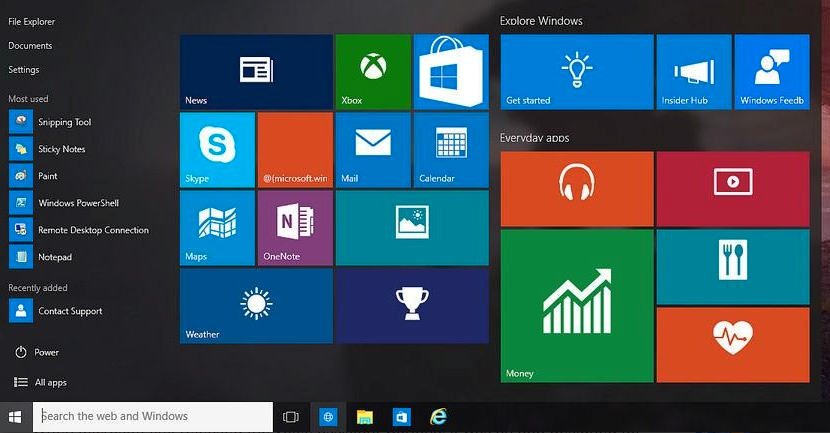 Make your start menu custom to your most common uses and needs! To get started, open your start menu and go to settings. From here, you will want to find “Personalization”. Click start and then “Start Behaviors” from the menu – from here you can toggle between the classical Windows Start menu or keep the metro tiles from Windows 8.
In addition you can also set the Apps, Programs, or other destinations to be displayed in the start menu. (See image to right for default metro tile view).
File Explorer – Quick Access or Standard View
 Some users are fans of the new Quick Access File Explorer, while others just want the standard view they are accustomed to seeing with Windows. The great thing with Windows 10 is you have the option to change this based on preference.
Either customize the items that appear in your Quick Access list, or go to the ribbon at the top of the image below and select “Open Settings”. From here you can change how File Explorer opens – to go back to the previous version select “This PC” from the “Open File Explorer to:” dropdown menu.
Quick Access is great for some who work with multiple mapped drives located on their company’s server, but if this seems too unfamiliar, take advantage of the settings available to switch back to what you used in previous Windows versions.
Cast Video to TV & More
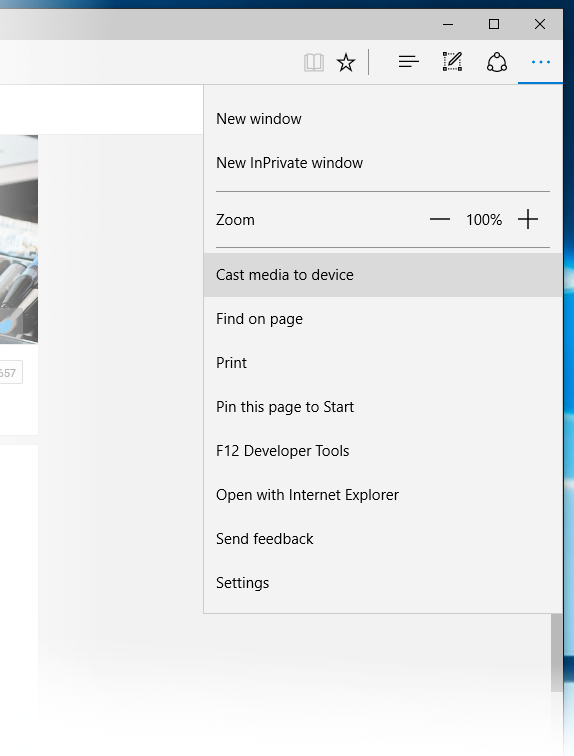 You may have seen the option from your browser already, but if you haven’t yet; take a look at the image below. Windows 10 has the ability to cast Video and Media similar to how a Chromecast works right out of the box. To be clear, it appears there are still some more bugs to work out to make this feature more seamless, however with that said, this is a very exciting feature to keep an eye on as further developments are made. With Businesses, having the ability to cast from any device without complicated setup needed will allow for easier collaboration in groups and meetings.
In order for Windows 10 to be able to cast to a device, that device will need to be Miracast (Miracast Technical Definition from Wikipedia) or DLNA compatible. You can find these types of devices in: Roku devices, Game Consoles, select Smart TVs and Blu-Ray Players). While understanding the technology that makes this possible becomes fairly complex, all you need to verify is whether or not the TV or device is compatible with either of these features. Let Fuse know if you have questions on how this would work for your office and speak with one of our specialized technicians today.
Scheduled Restarts
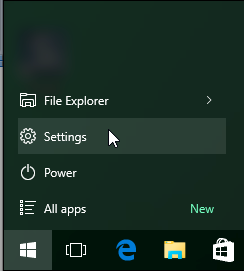 For those of us who live out of Microsoft Office, we understand that after having 10 Excel Spreadsheets, a few PowerPoint presentations, and Word Documents open (whether at the same time or in a small time period) our computers slow down quite a bit. If that sounds like you, this feature is very convenient! Setup scheduled restarts to ensure that your computer is ready to go for you when you get back to work the next day.
Additionally, this is a great feature for IT departments as well. When computers restart they complete installation for updates, security patches, and more. By ensuring this happens from an administrative standpoint, you can know that the updates were completed on all machines in a timely fashion.
New Windows 10 Keyboard Shortcuts
 Some of the fastest users try to minimize the amount they use their mouse to work faster – whether in Office, Web Browsing, or any application – these shortcuts can save you time and help streamline your workflow.
Take a look at this list of 20 keyboard shortcuts from PC World – all dedicated to new Windows 10 Features.
Edge Browser – Annotate, Highlight & insert notes
Whether you have a strong browser preference or not, Microsoft Edge has some interesting features that sets it apart from the other options out there. One of our favorite features comes in use for meetings and collaboration – the ability to Annotate, Highlight, or insert notes right onto the browser page. If you are streaming to a TV to share your screen, nothing makes it easier than being able to doctor up a page to guide attention to specific points on the page.
Another great use is for when you are researching topics. Simply highlight or annotate and go back to the page at a later time. If you’re using Microsoft Office 2016, you can also seamlessly insert images or screen shots into the document to make researching and gathering presentation materials a synch.
